
Scripts / Finderscope
Finderscope
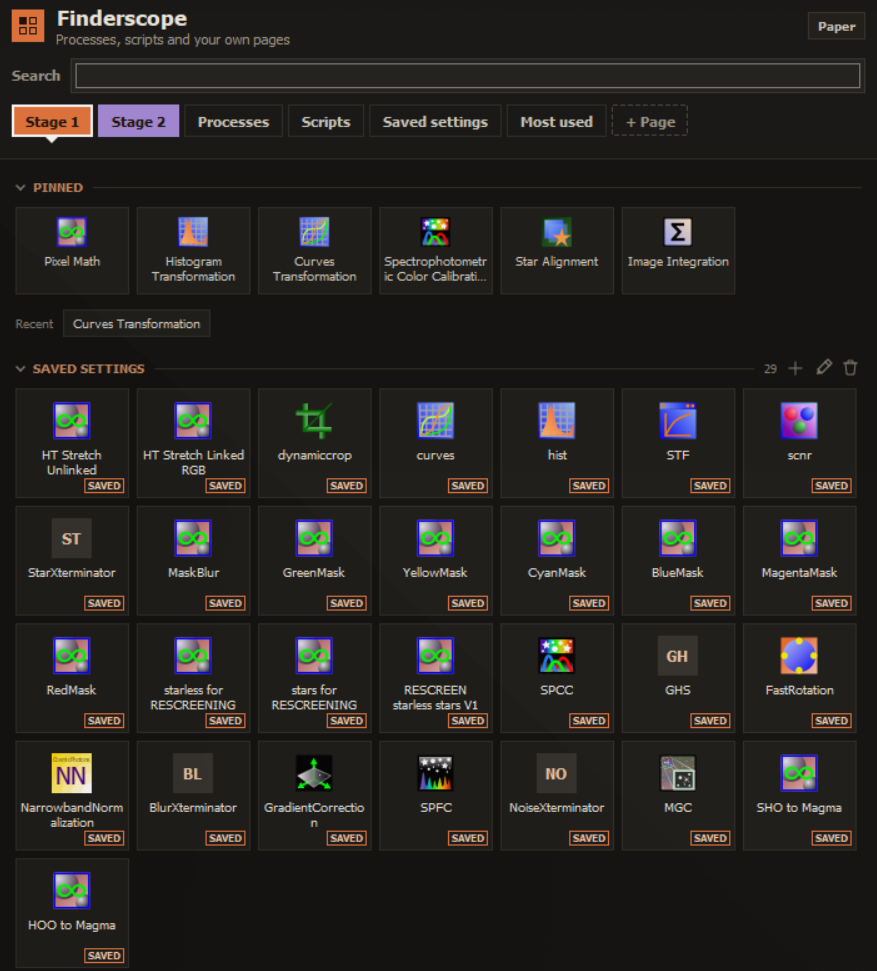
A dockable panel of icon tiles for every process and script you use, arranged on your own pages, plus saved process settings you can apply to an image with one click.
Overview
PixInsight's Process and Script menus get long. Finderscope puts the tools you actually use on one panel that stays open while you work: every installed process and script as an icon tile, arranged on pages and sections you make yourself, with search when you need something else.
It can also keep your own settings. Turn any process icon into a saved-settings tile, then click it to open the process with those parameters, or apply them straight to an image: Shift+click, press the tile's play button, or drag the tile onto the image. Saved settings are stored as plain data, never as code.
Features
Pages and tiles
- Processes and Scripts pages built automatically from what's installed
- Your own pages with sections, dividers and colored tabs
- Drag tiles and sections around; everything slides aside as you drag
- Select several tiles with Ctrl+click and move them together
Finding things
- Search by name or acronym, with the keyboard to move through results
- Pinned tiles on every page, Recent, and a Most used page
- Five tile sizes, from large to icons only (Ctrl+mouse wheel)
- Labels shorten to abbreviations and acronyms as tiles get smaller
Saved settings
- Save settings from your process icons, one or many at a time
- Click to open the process with those settings
- Apply to an image: Shift+click, the play button, or drag onto the image
- Stored as plain data and applied by a signed helper script
Workflows
- Numbered steps for sections that follow a workflow
- Collapsible sections
- Rename any tile on your pages
- Export and import your whole layout to back it up or share it
Install
Add the FederAstro repository to PixInsight once. PixInsight then installs Finderscope and offers every future update automatically. Everything in it is signed by a Certified PixInsight Developer.
- In PixInsight, open Resources ▸ Updates ▸ Manage Repositories.
- Click Add and paste
https://federastro.com/pixinsight/ - Click OK, then open Resources ▸ Updates ▸ Check for Updates.
- Apply the update and restart PixInsight when it asks.
- Open it from Process ▸ FederAstro ▸ Finderscope.
Requirements
- PixInsight
- 1.9.5 or later
- Platforms
- Windows (64-bit) and macOS (Apple silicon)
- Type
- PixInsight module (a process with its own panel)
- License
- Free
Changelog
Version 0.6.5
- A rainbow FederAstro banner in the Process Console the first time its window opens in a session
Version 0.6.4
- Now available for macOS (Apple silicon)
- The help shows where saved settings are kept on each system
Version 0.6.3
- Importing a layout is safer: saved settings always get fresh names that stay inside Finderscope's own folder
- Undo after an import restores your saved settings and removes only the imported ones
Version 0.6.2
- New icon
- Script tiles show icons for scripts that keep theirs in PixInsight's icon folder
Version 0.6.0
- Renamed from afeder Launcher to Finderscope
- Now under Process ▸ FederAstro
- Documentation page in PixInsight's Documentation Browser
- Saved settings are stored as plain data and applied by a signed helper script
Version 0.5.0
- First release in the FederAstro repository
- Pages, sections, pinned, recent and most-used tiles
- Saved-settings tiles from process icons, applied by click, play button or drag and drop
- Tile sizes with abbreviated and acronym labels
- Search, collapsible sections, numbered workflow steps, and layout export and import
Credits and license
Finderscope is written by afeder (FederAstro). This product is based on software from the PixInsight project, developed by Pleiades Astrophoto and its contributors (https://pixinsight.com/).